GBA Graphics, Part 2: Layers, Sprites and Blending
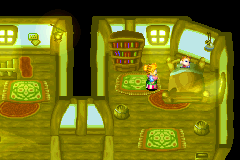
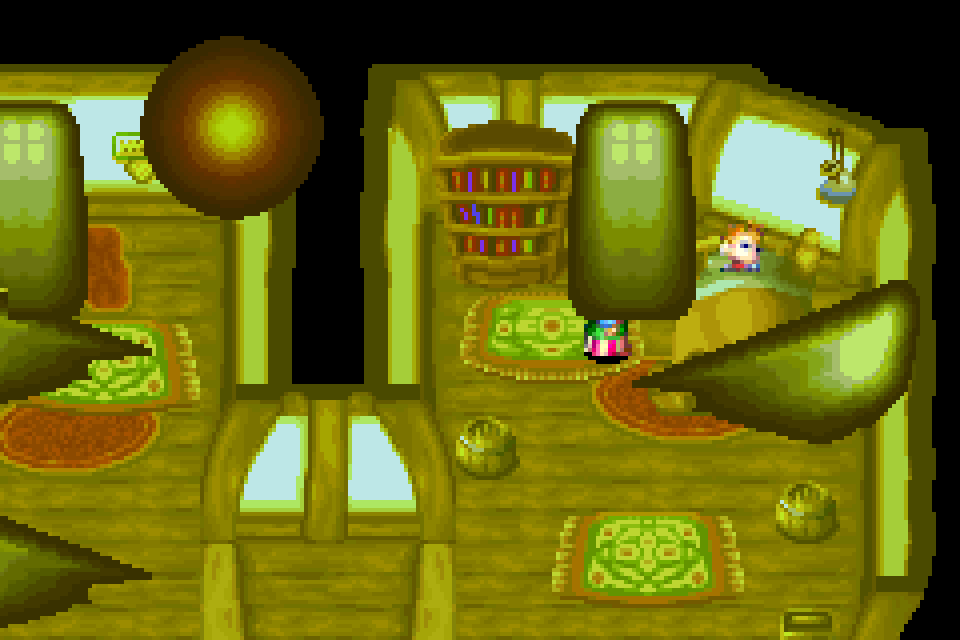
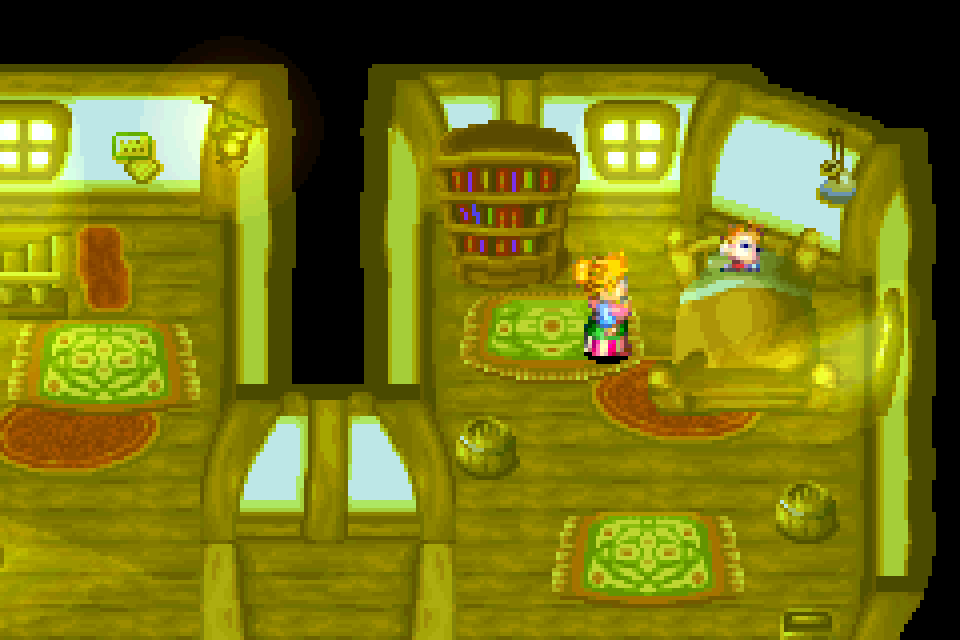
In the opening scene of Golden Sun, the glow of the lamp and the light coming in through the windows are a layer of their own, mixed into the room behind it:
Part 1 took a single background apart: its tiles, its map and its palette banks. The Shaman King frame has 4 of them, though, plus the sprites that make up the player character. They all overlap. For every pixel, the GBA has to decide which of them ends up on screen. This part looks at how it makes that decision, where the sprites come from, how windows hide parts of a layer and how blending, fades and mosaic change the colors that end up on screen.
Backgrounds and priority#
In mode 0, the GBA has 4 tiled backgrounds, BG0 to BG3, each switched on by its own bit in DISPCNT and configured by its own BGxCNT register. Bits 0 and 1 of BGxCNT hold the background’s priority, from 0 at the front to 3 at the back. Wherever a background has a transparent pixel, the next one shows through. Where none of them has anything to draw, the screen shows the backdrop color from palette entry 0.
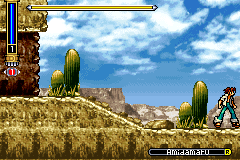
Sprites, which get their own section below, have a priority as well. It’s stored per sprite in OAM attribute 2 and uses the same 0 to 3 scale. The Shaman King frame from Part 1 uses all 4 backgrounds and 2 sprites:
| Layer | Priority | Content |
|---|---|---|
| BG0 | 0 | Health bars and name |
| BG1 | 2 | Ground, cacti and the cliff |
| BG2 | 3 | Hills in the distance |
| BG3 | 3 | Sky and clouds |
| Sprites | 2 | The player character |
When 2 backgrounds have the same priority, the one with the lower BG number appears in front. BG2 and BG3 both have priority 3, so BG2’s hills cover BG3’s sky. Sprites appear in front of backgrounds with the same priority, which puts the player in front of the ground at priority 2. The health bars at priority 0 would still cover the player character if they overlapped.
Toggle the layers below or change their priorities. Giving BG3 priority 2, for example, puts the sky in front of the hills. The visible part of the sky has no transparent pixels, so the hills disappear completely. The hills also show how sprites interact with backgrounds, since the character stands in front of them. At priority 2, the hills tie with the sprites and the character stays in front. At priority 1, the hills move in front of both the ground and the character. Only the character’s head is left against the sky. Setting the sprites to 1 as well brings the character back, because the tie goes to the sprites again.
–
Sly renders each enabled background into a line of its own. To see how it picks an opaque pixel, we can simplify the compositor to a sorted list of backgrounds. Starting in order from BG0 to BG3, Rust’s stable sort_by_key keeps that order for equal priorities:
bg_order.sort_by_key(|&(_, priority)| priority);The sprites get a line of their own as well, where each pixel remembers a color and priority. In this simplified version, we take the first background that isn’t transparent and compare its priority with the sprite’s. The sprite wins if its number is the same or lower. Where no background has anything to draw, the backdrop stands in with a priority of u8::MAX, so a sprite always covers it. Blending also needs the next layer, which we’ll get to later:
let (mut color, bg_priority) = bg_order
    .iter()
    .find_map(|&(index, priority)| bg_lines[index][x].map(|color| (color, priority)))
    .unwrap_or((backdrop, u8::MAX));

if let Some(sprite) = sprite_line[x]
    && sprite.priority <= bg_priority
{
    color = sprite.color;
}Sprites#
Backgrounds fill the whole screen, but plenty of things in a game need to move around on their own: characters, cursors, projectiles and often text. The GBA draws these as sprites, also called objects, or OBJs. A sprite is a small image built from 8 × 8 tiles that the hardware draws at any position on the screen.
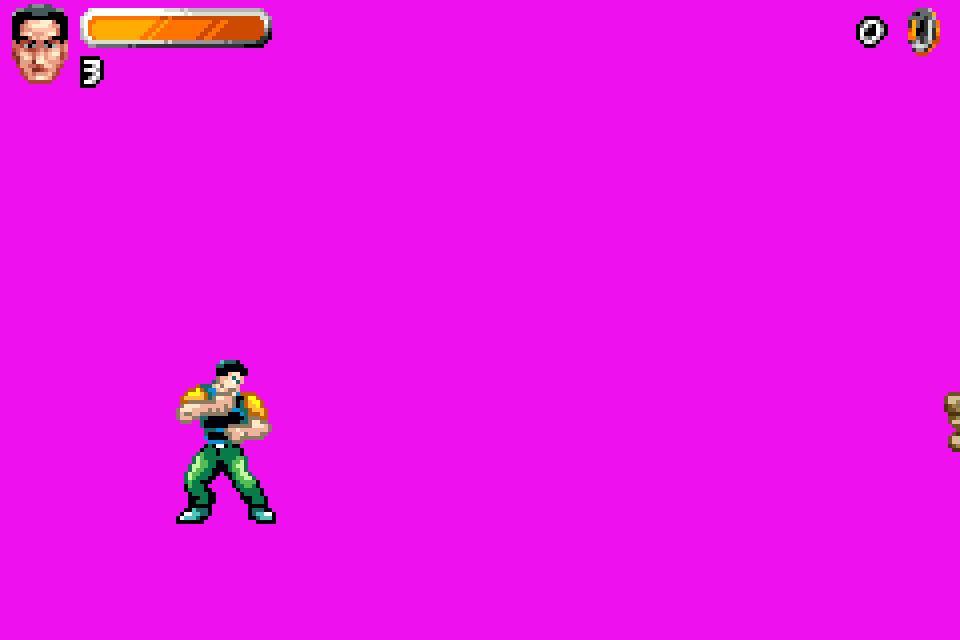
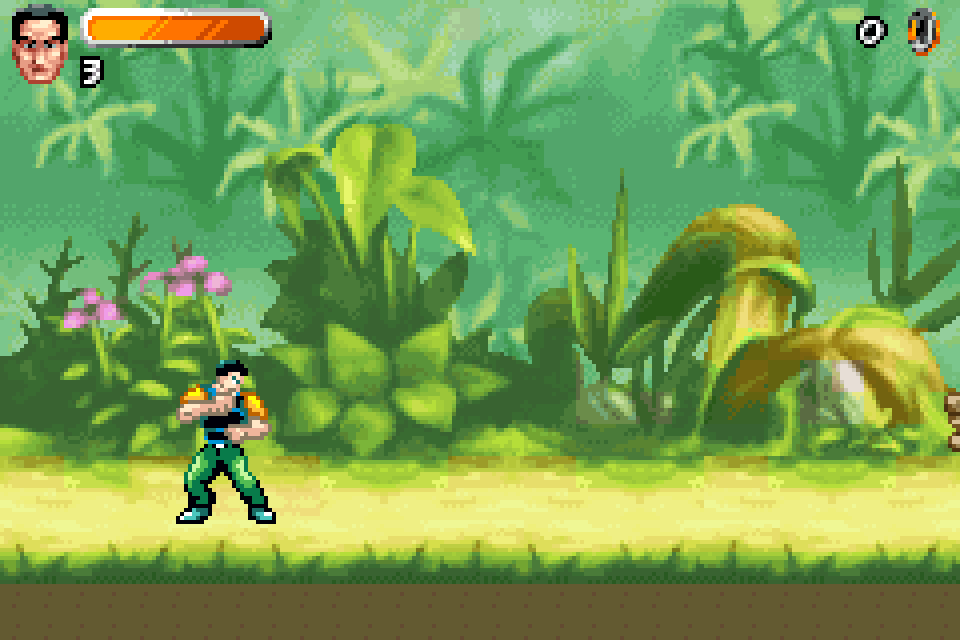
Action Man: Robot Atak uses both kinds of PPU modes in this series. Its island map is a mode 3 bitmap from Part 1 with sprites on top, whereas its levels use the tiled backgrounds from Part 1. Drag the slider to remove the backgrounds from a level: everything that’s left is a sprite.
Object attribute memory#
Each sprite is described by an entry in OAM, the 1 KiB of object attribute memory at 0x07000000. There’s room for 128 entries, 8 bytes apart. Each one holds 3 16-bit attributes. The 4th halfword in each entry belongs to the rotation and scaling parameters, which Part 3 covers.
Attribute 0
- Shape: square, wide or tall bits 14–15
- 4 or 8 bits per pixel bit 13
- Blending, windows and mosaic bits 10–12
- Rotation, scaling and hiding bits 8–9
- Y position bits 0–7
Attribute 1
- Size bits 14–15
- Vertical flip bit 13
- Horizontal flip bit 12
- X position bits 0–8
Attribute 2
- Palette bank bits 12–15
- Priority relative to the backgrounds bits 10–11
- First tile number bits 0–9
Shape and size together pick 1 of 12 sizes, in pixels. Shape 3 isn’t allowed:
| Size | Square | Wide | Tall |
|---|---|---|---|
| 0 | 8 × 8 | 16 × 8 | 8 × 16 |
| 1 | 16 × 16 | 32 × 8 | 8 × 32 |
| 2 | 32 × 32 | 32 × 16 | 16 × 32 |
| 3 | 64 × 64 | 64 × 32 | 32 × 64 |
Tiles and palettes#
A sprite’s image comes from sprite tile memory, the 32 KiB of VRAM starting at 0x06010000. Tile numbers count 32-byte units, so tile starts at . The bitmap modes from Part 1 take the first half of that area, so they only leave tiles 512 to 1023. That’s why every sprite on Action Man’s mode 3 map uses a tile number of at least 512, whereas the level’s sprites start at 0.
All the sprites in these frames use 4 bits per pixel, which fits 2 pixels into each byte and makes a tile exactly 32 bytes. Each 4-bit value selects 1 of 16 colors from the sprite’s palette bank, 1 of 16 banks in the sprite palette at 0x05000200. Value 0 is always transparent, which is how a 32 × 32 square becomes Action Man’s round portrait.
A sprite can also use 8 bits per pixel and the whole 256-color sprite palette. Its tiles then take 64 bytes, but tile numbers still count in steps of 32 bytes, so GBATEK notes that “only each second tile may be used, the lower bit of the tile number should be zero (in 2-dimensional mapping mode, the bit is completely ignored)”.
Finding the rest of the tiles#
OAM only stores the first tile of a sprite, so the hardware needs a rule for where the others are. Bit 6 of DISPCNT selects one of 2 layouts:
- With 1D mapping, a sprite’s tiles simply follow each other in memory, row by row.
- With 2D mapping, tile memory is treated as a grid 32 tiles wide, so the next row of a sprite starts 32 tile numbers later.
For a 4-bit sprite that’s pixels wide, the tile at column and row is therefore:
With 8 bits per pixel, each tile takes 2 numbers, so the column offset doubles in both layouts. With 1D mapping, the row offset doubles as well. Both Action Man frames set bit 6 and use 1D mapping. Switch the demo below to 2D mapping to see what happens when the 2 disagree: single-row sprites like the letters of “ADVENTURE” on the map are unaffected, while taller sprites read their lower rows from different addresses. The image changes wherever those addresses hold different tile data.
Click a sprite below to decode its entry, or step through them with the arrow keys:
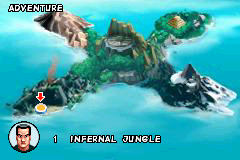
A mode 3 bitmap with 28 sprites on top, captured in Sly.
Larger shapes are often built from several sprites. Action Man himself is 6 sprites in 5 different sizes. The word “ADVENTURE” on the map is 9 separate 8 × 8 sprites placed 5 to 7 pixels apart, so the letters overlap where their tiles are blank. Both E’s point at tile 515, because the image only has to be stored once.
Position and overlap#
The Y position only has 8 bits. The health bar is a 64 × 32 sprite at , so its rows continue past 255 and wrap around to the top of the screen. Subtracting on 8-bit values reproduces this wraparound:
for attr in sprite::attributes(memory.oam) {
    // ...
    let (width, height) = attr.dimensions();
    let row = (line as u8).wrapping_sub(attr.y_coordinate()) as usize;
    if row >= height {
        continue;
    }
    // ...
}
The X position has 9 bits and wraps the same way at 512, so a sprite at starts 12 pixels left of the screen and shows only its right part. These rules cover the regular sprites here. Affine sprites with a 128-pixel-high double size area have a Y wrapping exception.
When 2 opaque sprite pixels overlap, the lower priority number wins. If their priorities match, the lower OAM entry appears in front. Going through entries from 0 upwards, a later opaque pixel only replaces one with a higher priority number:
if dst.is_none_or(|pixel| attr.priority() < pixel.priority) {Windows#
Priorities decide which layer ends up in front, but they can’t hide part of a layer while showing the rest. That’s what windows are for. Tales of Phantasia opens with a quote that appears from left to right, one line after the other. It looks like the game draws the text as it goes, but the whole quote is already on BG3 from the first frame:
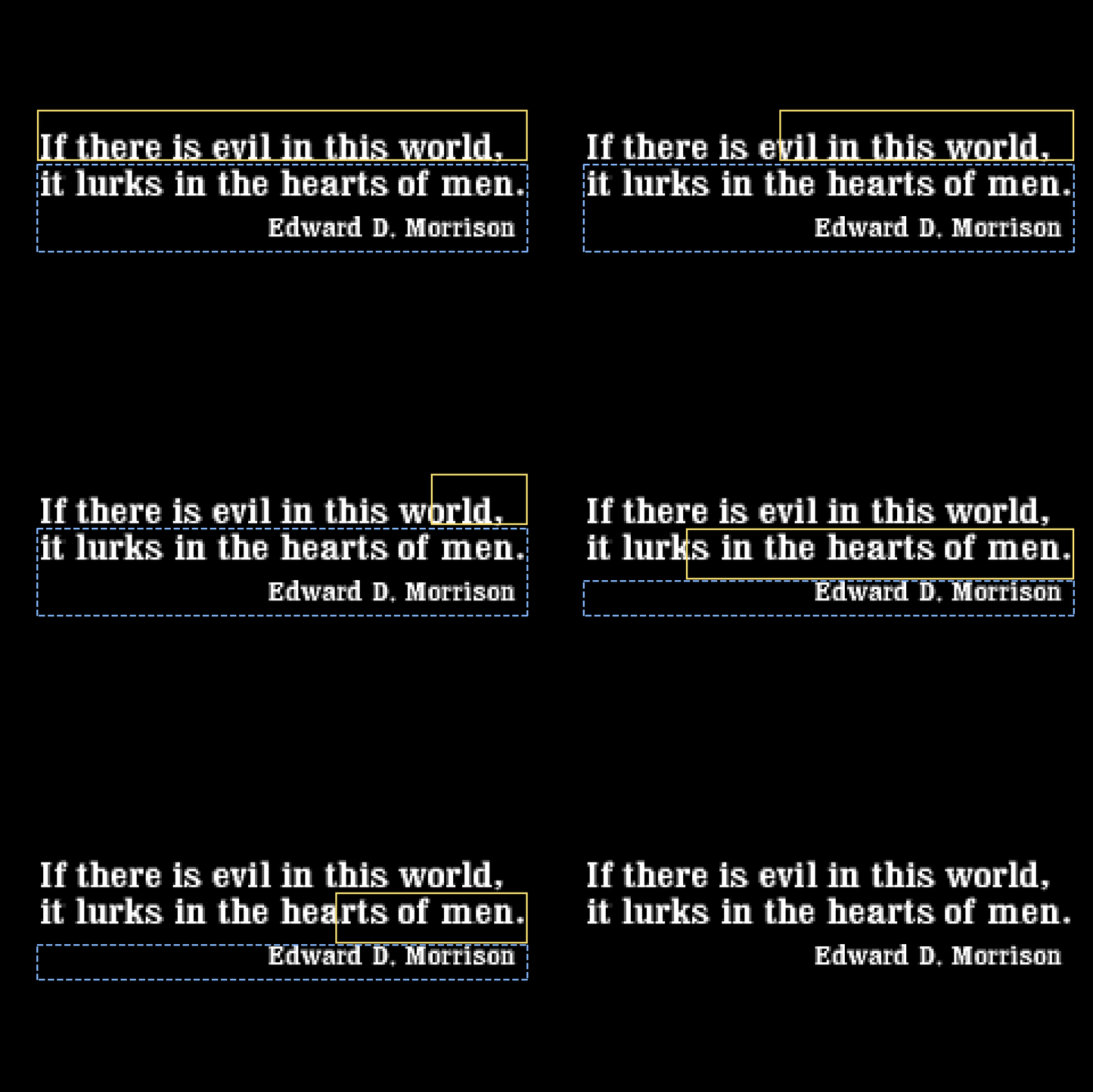

Across the 641 recorded frames, the text’s map, tiles and palette have the same contents. Changing the window and effect registers is enough to reproduce the reveal and fades from that one background.
Rectangles#
A window is a region of the screen with its own list of visible layers. The GBA has 2 rectangular windows, window 0 and window 1, which bits 13 and 14 of DISPCNT switch on. 2 registers set the edges of each one: WINxH holds the left and right edge, while WINxV holds the top and bottom.
WIN0H and WIN1H
- X1, left edge bits 8–15
- X2, right edge plus 1 bits 0–7
WIN0V and WIN1V
- Y1, top edge bits 8–15
- Y2, bottom edge plus 1 bits 0–7
In the frame above, WIN0H is 0x71e8 and WIN0V is 0x3047. Window 0 therefore covers x 113 to 231 and y 48 to 70, which is the part of the first line that hasn’t appeared yet:
Window 1 covers the lines below it, from y 72 to 110. Every frame, the game moves window 0’s left edge up to 2 pixels to the right. Once the first line is complete, both windows move down to the next one.
What each region shows#
WININ and WINOUT decide which layers each region lets through. They hold a byte per region, with a bit for each background, one for the sprites and one for the color special effects, such as blending:
WININ
- Window 1: effects bit 13
- Window 1: sprites bit 12
- Window 1: BG0-BG3 bits 8–11
- Window 0: effects bit 5
- Window 0: sprites bit 4
- Window 0: BG0-BG3 bits 0–3
WINOUT
- OBJ window: effects bit 13
- OBJ window: sprites bit 12
- OBJ window: BG0-BG3 bits 8–11
- Outside: effects bit 5
- Outside: sprites bit 4
- Outside: BG0-BG3 bits 0–3
The intro sets WININ to 0x0000 and WINOUT to 0x000f, so nothing is visible inside either window, whereas all 4 backgrounds are visible outside them. A layer still has to be switched on in DISPCNT as well, so only BG3 actually appears. Wherever a window hides everything, the screen shows the backdrop color, which is black here.
A pixel can be inside several windows at once. The GBA checks window 0 first, then window 1 and then the OBJ window. Every other pixel counts as outside. In the demo below, show BG3 in window 1 to bring back the rest of the quote, or drag window 1 up over window 0. Where they overlap, window 0’s setting wins:
Sprite-shaped windows#
The third window has no rectangle at all. A sprite whose mode in attribute 0 is set to OBJ window isn’t drawn. Instead, every pixel of it that isn’t transparent becomes part of the OBJ window. Both bit 12 of DISPCNT, for sprite processing, and bit 15, for the OBJ window, must be on. That way, a window can take any shape a sprite can. The high byte of WINOUT decides what’s visible inside it.
Fire Emblem’s title screen uses this to fill its logo with fire. BG0 is a band of flames across the whole width of the screen. To limit it to the logo, the game uses 7 sprites in OBJ window mode that together have the shape of the letters “FIRE EMBLEM”. WINOUT is 0x313e. Its low byte shows BG1 to BG3, the sprites and effects outside the windows, but not BG0. Its high byte, 0x31, shows BG0, the sprites and effects inside the OBJ window. The flames therefore only appear inside the letters, in front of the logo sprites behind them:


The flames ripple because the game rewrites BG0’s scroll registers during HBLANK, changing them every 2 lines. For lines 40 to 99, it also blends BG0 and BG1 with the layers behind them, which is why the weapons show through the flames on the right.
The window checks follow that same order:
if let Some(index) = (0..2).find(|&index| windows.contains(index, x, y)) {
    return Some(WindowRegion::Rectangle(index));
}

Some(if windows.obj_enabled && inside_obj_window {
    WindowRegion::Obj
} else {
    WindowRegion::Outside
})
The region picks a byte of WININ or WINOUT. A layer whose bit in that byte is clear is hidden in that region.
Blending#
Windows can only show or hide a layer. To mix 2 layers, the GBA has color special effects. Golden Sun uses them in its very first scene, in Isaac’s house during a storm: the glow of the lamp and the light coming in through the windows are on BG1. The game blends that layer into the room behind it.
First and second targets#
BLDCNT decides which layers take part and what happens to them:
BLDCNT
- Second targets: BG0-BG3, sprites, backdrop bits 8–13
- Effect bits 6–7
- First targets: BG0-BG3, sprites, backdrop bits 0–5
The effect is 0 for none, 1 for alpha blending, 2 to brighten and 3 to darken. Alpha blending only happens where the frontmost pixel belongs to a first target and the pixel right behind it to a second target. Everywhere else, the top pixel is shown as it is. Golden Sun sets BLDCNT to 0x3f42: BG1 is the only first target, the effect is 1 and every layer is a second target, so wherever BG1 is the frontmost visible layer, it’s mixed with whatever is behind it.
Mixing the colors#
BLDALPHA holds 2 weights in sixteenths: EVA for the first target in bits 0 to 4 and EVB for the second target in bits 8 to 12. Each color channel is mixed on its own:
is the channel of the first target and the one behind it, both from 0 to 31. EVA and EVB have 5 bits each, but the GBA treats any value from 17 to 31 as 16. Golden Sun’s BLDALPHA of 0x1006 means EVA = 6 and EVB = 16, so the room keeps its full strength and 6/16 of the light is added on top. The pixel at (225, 82) has BG1 = (14, 16, 1) in front of BG3 = (14, 13, 0):
The hardware drops the fraction, which gives (19, 19, 0). The 2 weights add up to more than 16 here, so a bright light on a bright part of the room can go past 31. That’s what the minimum is for. In the demo below, 409 visible BG1 pixels need at least one channel capped at 31. Change the weights or click a pixel to see its calculation:
The formula translates directly into code:
(((top_channels[i] * self.eva) + (below_channels[i] * self.evb)) >> 4).min(31)Sprites have a shortcut. A sprite whose mode in attribute 0 is set to semi-transparent uses EVA and EVB whenever the layer immediately behind it is a second target, regardless of BLDCNT’s first targets and selected effect. It still needs that second target. Overlapping sprites have already been reduced to one sprite pixel before this stage, so they can’t be alpha-blended with each other.
Fades#
Effects 2 and 3 don’t need a second layer. They move every first target toward white or toward black by EVY sixteenths, which BLDY holds:
Here, is the original channel and the result. The floor applies to the amount added or subtracted. EVY works like EVA and EVB, so values above 16 count as 16 here as well.
That’s how the author’s name fades in at the end of the Tales of Phantasia intro. Once the quote is complete, the game switches window 0 off and sets WININ to 0x2800, which shows BG3 inside window 1 and turns on its effects bit. BLDCNT is 0x00ff: every layer is a first target and the effect is 3, darken. BLDY then counts down from 16 to 0 over about 60 frames. Halfway through, at EVY = 8, the white parts of the name are 16 out of 31:
Only window 1 has its effects bit set, so the quote above the name stays at full brightness the whole time. At the very end, the game turns the windows off and raises BLDY to 16 again, which darkens the whole screen to black. Play the windows demo above to the end to see both fades.
A fade doesn’t have to use brightness, though. When you start a new game of The Legend of Zelda: The Minish Cap, it tells the legend in stained-glass pictures. The narration under each picture fades in with alpha blending instead:
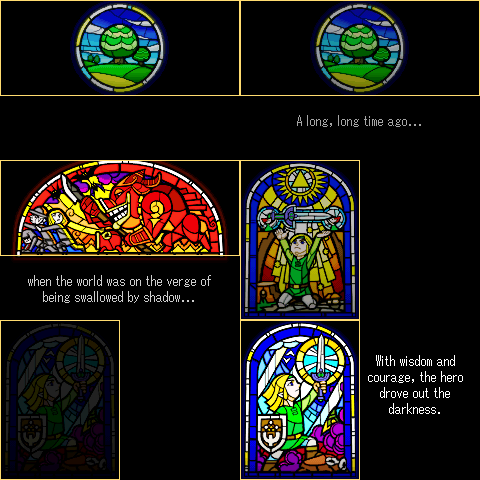

The picture is on BG2, which covers the whole screen, including the black area below the picture. The text is on BG1 behind it, so normally BG2’s black would hide it. BLDCNT is 0x2244, which makes BG2 the first target and BG1 and the backdrop second targets. During the fade, the game raises EVB from 0 to 16, one step every 2 frames, while EVA follows . The first nonzero step and the final step are 30 frames apart. BG2 is black below the picture, so its channels are 0. What’s left is the text weighted by EVB. At EVB = 9, white text comes out like this:
The picture itself is a first target as well, so blending would dim it too. Window 0 prevents that: it covers the picture, from y 0 to 95. WININ is 0x001f, which shows every layer inside it but leaves the effects bit clear. WINOUT is 0x003f and has the effects bit set, so the effect only applies to the area below the picture. For the third picture, the game moves window 0 to the left half of the screen and the narration to the right. The same registers keep the effect on the text.
Mosaic#
The last effect doesn’t hide or mix a layer, it makes it blockier. When Mario enters a level from the map in Super Mario World, the map dissolves into larger and larger blocks:
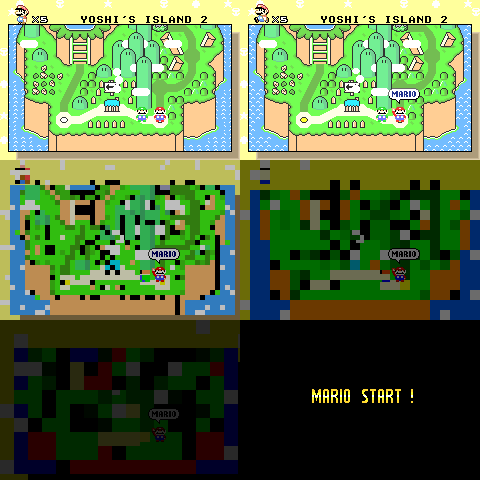
MOSAIC holds 2 block sizes, one for the backgrounds and one for the sprites. Each is a width and a height in pixels, stored minus 1:
MOSAIC
- Sprite height - 1 bits 12–15
- Sprite width - 1 bits 8–11
- Background height - 1 bits 4–7
- Background width - 1 bits 0–3
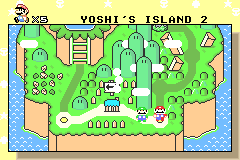
A background only uses them if bit 6 of its BGxCNT is set. A sprite only uses them if bit 12 of its attribute 0 is set. For a regular background, the blocks line up with the screen and each one takes the color of its top-left pixel. With a width of 6, for example, pixels 0 to 5 of every line show pixel 0, pixels 6 to 11 show pixel 6 and so on. Super Mario World sets the mosaic bit on all of its backgrounds and writes the same size to all 4 fields, from 0x1111 for 2 × 2 blocks to 0xffff for 16 × 16. Mario and his name tag have their sprite mosaic bits clear, so they stay sharp. The fade routine also subtracts 2 from each palette color’s 5-bit channels, stopping at 0. That’s why the map gets darker as the blocks grow.
Try your own block sizes on the map:
Putting it all together#
We can now put these steps together to render regular backgrounds and sprites:
- Mosaic: For a background with its mosaic bit set, round the pixel’s position down to the start of its block before looking it up. Apply the sprite block lookup to enabled sprites as well.
- Window region: The pixel is in window 0 if it’s inside it. Failing that, it’s in window 1, then in the OBJ window, otherwise outside. That region’s byte in
WININorWINOUTdecides which layers it shows and whether effects are allowed. If no window is switched on inDISPCNT, everything is allowed. - Layers: Take the backgrounds that are switched on in
DISPCNTand allowed in the region, skip the ones that are transparent at this pixel and sort the rest by priority, with the lower BG number first on a tie. The sprite pixel goes in front of every background with the same or a higher priority number. The backdrop comes last. - Effects: Only the frontmost layer and the one right behind it matter. A semi-transparent sprite in front is alpha-blended with the layer behind it if that’s a second target. Otherwise, if the region allows effects and the frontmost layer is a first target,
BLDCNTdecides: alpha blending, if the layer behind is a second target, or brightness. - Output: Each 5-bit channel is expanded to the 8 bits a modern screen expects.
Back to the opening frame#
With everything from this part, here’s how one pixel of the Shaman King frame gets its color. The pixel at (223, 111) is on the player character’s clothes, in front of the hills:
- BG0 and BG1 are transparent there.
- BG2’s hills have color (18, 15, 12) and BG3’s sky (16, 22, 28). Both have priority 3, so BG2 wins the tie.
- A sprite pixel with priority 2 is there as well, colored (15, 27, 22). 2 is lower than BG2’s 3, so the sprite goes in front.
DISPCNTis0x1f40and has no window switched on, so every layer is visible everywhere.- The demo leaves this sprite color unchanged, matching the pixel in the image.
The pixel ends up as (15, 27, 22). So far, we’ve used scrolling and position changes to move the layers. Part 3 looks at the backgrounds and sprites the GBA can rotate and scale.